Watching on your phone is fine for a while, but a game or a movie demands the big screen. If you have a Chromecast, Xuper TV can send the image to your TV in seconds. Here's how, and what to check if the button doesn't appear.
Xuper TV APK
Contents of this guide
What type of Chromecast do you have?
Not all Chromecast are created equal, and that changes everything:
- Classic Chromecast, no remote: it only receives what you send from your phone. You use the cast button on the Xuper TV player.
- Chromecast with Google TV, with remote: it's a complete Android device. You can cast from your phone or, even better, install the TV APK directly on it.
- TV with Chromecast built in: Many TVs with Android TV and some from other brands receive the stream just like a Chromecast
Send from your mobile phone
- Connect your phone and Chromecast to the same Wi Fi network. It's the most easily forgotten requirement.
- Open Xuper TV and start playing the channel, movie, or episode.
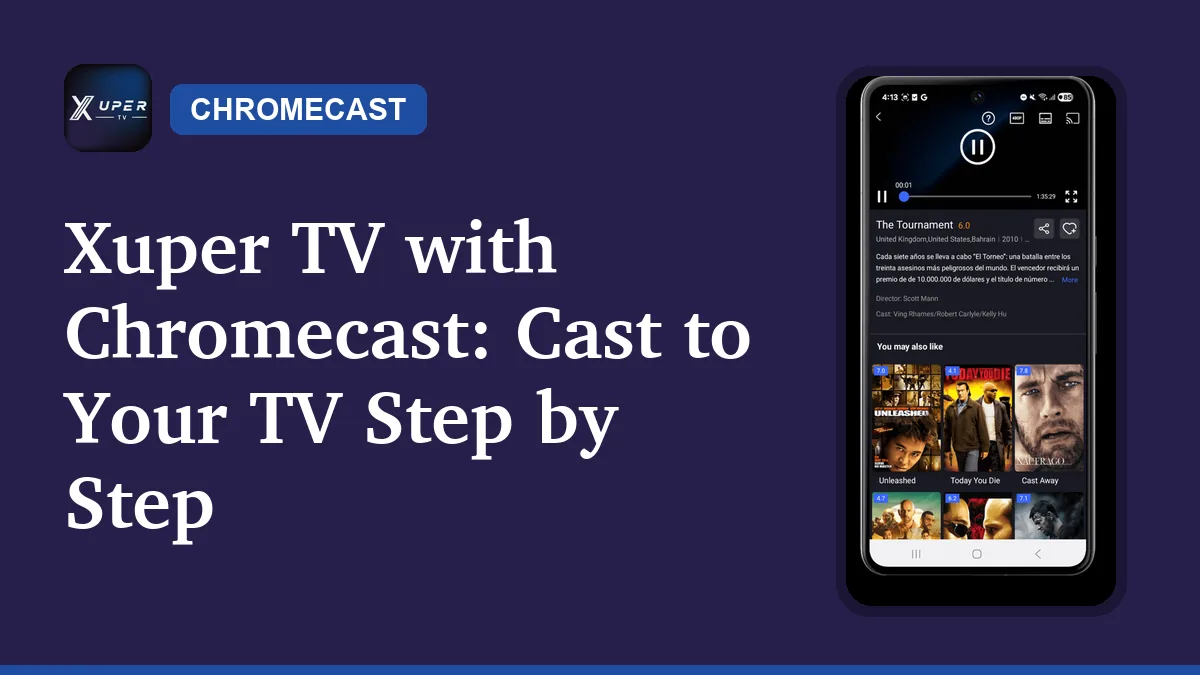
- Tap the broadcast icon, the rectangle with waves, at the top of the player.
- Select your Chromecast from the list. After a few seconds, the image will transfer to the TV.
- Use your phone as a control: pause, fast forward, or change episodes from the app.
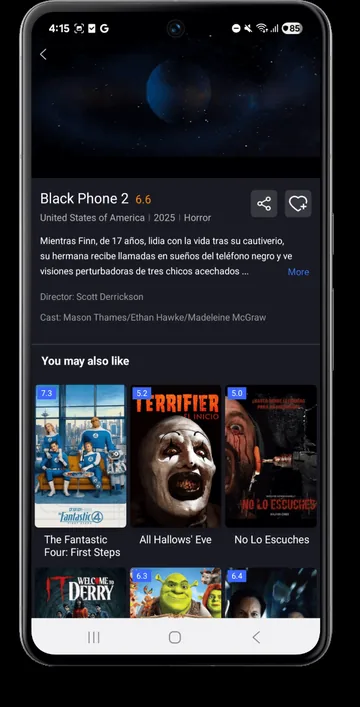
If the cast icon does not appear
With a Chromecast and Google TV, installing the TV APK directly on the device yields better results than casting from your phone: it doesn't rely on your phone's battery, and the remote control works directly. You can find the steps on Xuper TV for Smart TV.
Improve quality
When streaming, the video travels twice across your network: from the server to your phone and from your phone to the Chromecast, or directly to the Chromecast depending on the source. That's why a congested network is more noticeable.
Frequently Asked Questions
1. Can I lock my phone while streaming?
In most cases, yes; the image remains on the TV. If it cuts out, leave the screen on.
2. Does it use mobile data?
Not if you're on Wi Fi, which is required to stream to a Chromecast.
3. Does it work with the TV APK?
The TV APK is installed on devices with Google TV or Android TV; it is not used for streaming.