Did the movie come out in English when you wanted it dubbed? Are the subtitles covering half the screen or not appearing at all? On Xuper TV all of that is controlled from the player, but the buttons aren't always easy to find. Here's where they are and what to do when a title doesn't have what you're looking for.

Xuper TV APK
Contents of this guide
Where are the options?
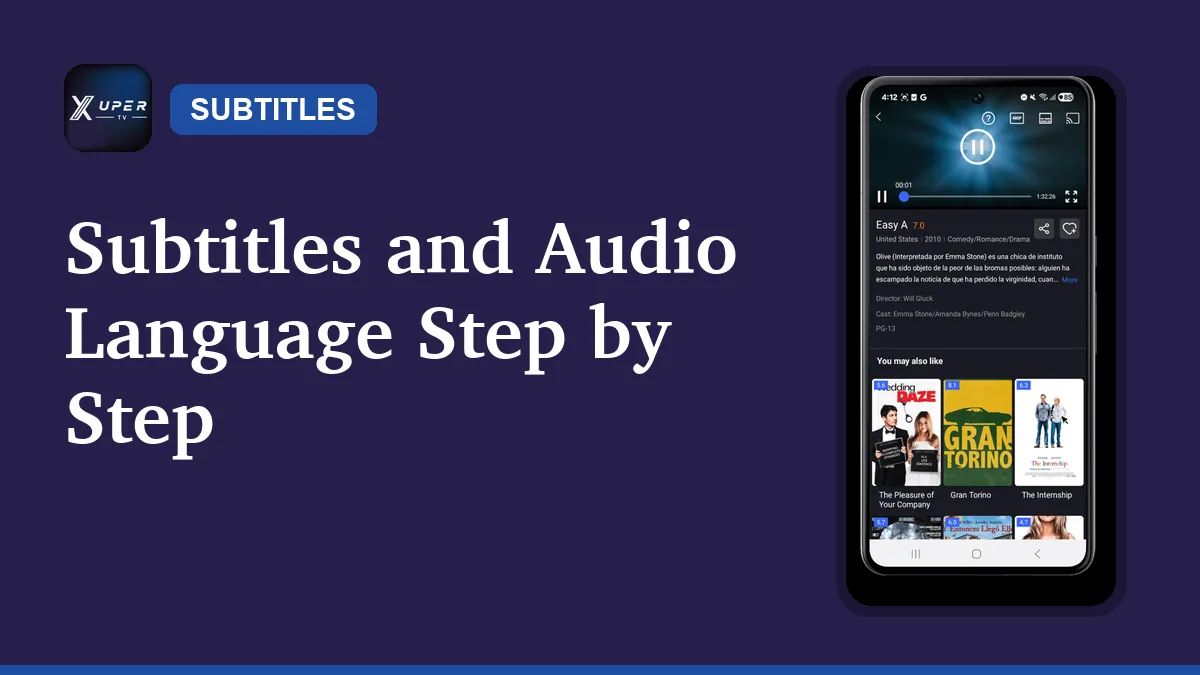
Start playing the title and tap the screen once. Several small icons will appear in the upper right corner: help, a card with text that corresponds to subtitles, and another that opens the audio tracks or adjusts the quality, depending on the compilation. If you don't see them, wait for the video to start; they appear once the source has loaded.
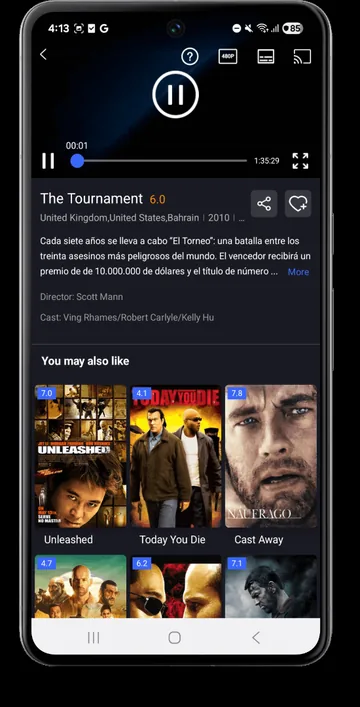
Change the audio language
- With the video playing, tap the screen to show the controls.
- Open the audio or tracks icon.
- Choose the language from the list: it usually appears as Latin American Spanish, Spanish, English, or original.
- Close the menu; the change is immediate and does not restart the video.
Many films have more than one version in the catalog, one dubbed and one subtitled. If the track you're looking for isn't in the menu, go back to the film's page and see if there's another entry for the same title.
Turn subtitles on or off
- Show the controls and tap the subtitles icon.
- Choose a language to activate them or the option to deactivate them.
- If the app offers size adjustments, increase it by one point when viewing from a distance.
In some titles, the subtitles are embedded in the image. These cannot be removed; they are part of the video. Look for another version of the same title in the catalog.
On the television with the remote control
In the TV APK, press the center button or the up arrow during playback to display the options bar. Use the arrows to navigate to the subtitles or audio icon and confirm with the center button. If your remote has its own subtitles button, this also works on many Android devices.
When your language doesn't appear
Frequently Asked Questions
1. Does the app remember the language I chose?
While viewing the same title, yes. When opening another, you can revert to that source's default language.
2. Can I change the language of the app menus?
The main interface is in English, and the category and channel names are usually in Spanish.
3. Do the live channels have subtitles?
They only appear if the original signal emits them. The app does not generate them.