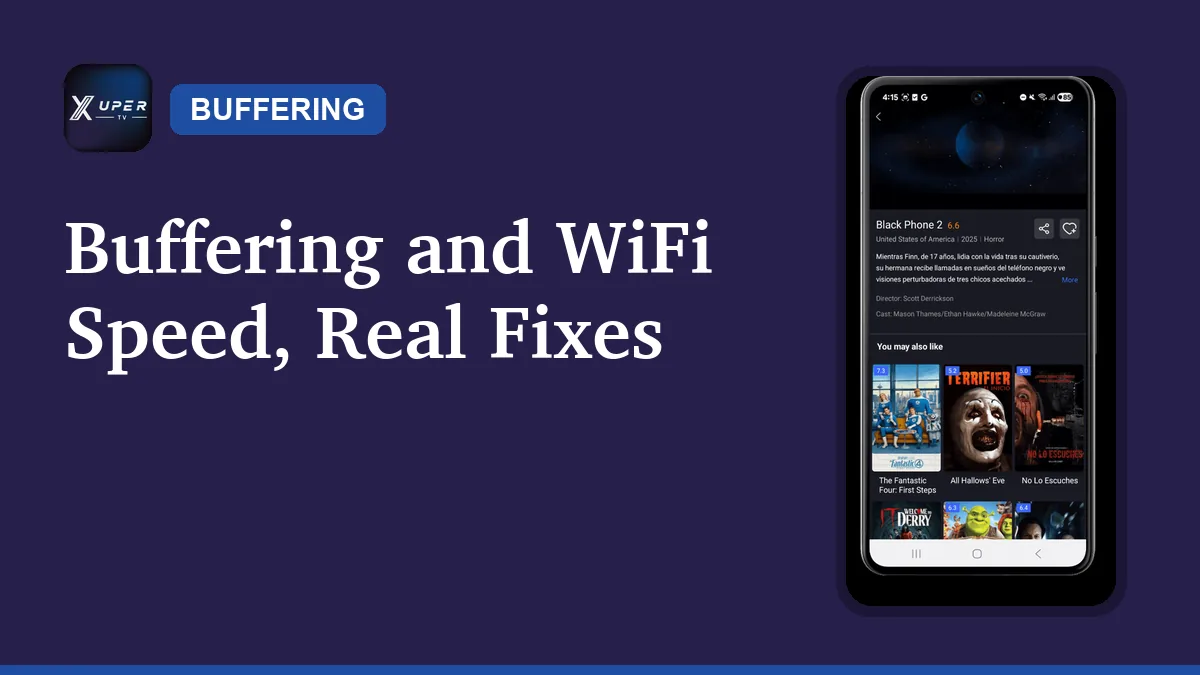
With hundreds of channels and a huge catalog, the hard part isn't finding something to watch, but rather revisiting what you already like. Xuper TV has three tools for that: channel favorites, hearts on channel listings, and viewing history. Used effectively, they turn the app into your own personal TV.

Xuper TV APK
Contents of this guide
The profile tab
The person icon in the bottom right corner opens your area within the app. Depending on the build, you'll find the settings and access to your saved content there. To confirm your version, check Android Settings, Applications, Xuper TV: it should say v7.8.1 if you just installed our file.
Channel Favorites
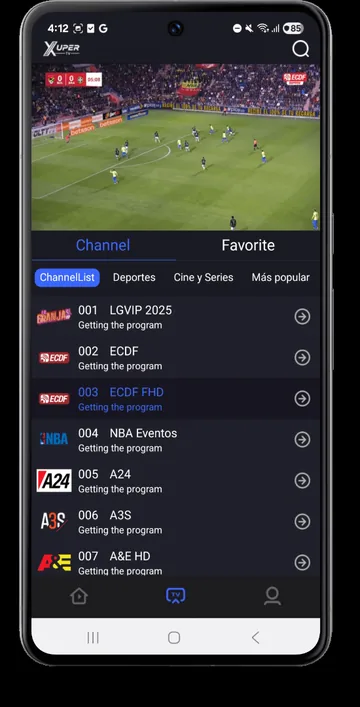
In the live channels section, you'll see two tabs: the full list and favorites. Favorites are the quickest way to create a short list of your usual channels.
- Open the channels section from the bottom bar.
- Look for the channel in the list or within its group, for example sports.
- Open it and use the add to favorites option in the player or the channel's tab.
- Go back to the list and enter the favorites tab: it will appear there with its number.
Save movies and TV shows
Each movie or TV show entry has a heart icon next to the share button. Tapping it saves the title, and you can find it later in your profile. It's ideal for jotting down recommendations without leaving the app or using your phone's notes app.
The history to resume
The clock icon at the top of the home screen shows what you've recently watched. If you left an episode unfinished, just tap there and continue without having to search for the series or episode. The history is also helpful when multiple people use the same app: everyone can quickly find what they're looking for.
An order that works
- Favorite channels: between ten and twenty channels, the ones you actually watch every week
- Hearts: ongoing series and pending films, nothing more
- History: to resume; no need to clear it unless you share the device
Favorites are saved on your device. If you uninstall the app or delete its data, they will be lost. When updating, install the new APK over the old one to keep them.
Frequently Asked Questions
1. Do favorites move from phone to TV?
Not automatically. Each device saves its own settings, so you'll have to select them on the TV as well.
2. Can I have separate profiles for each person?
The app doesn't offer separate profiles like other services. The most practical approach is to use favorites for shared channels and history for each series.
3. Does clearing the cache delete my favorites?
Clearing the cache won't; clearing the app data will.